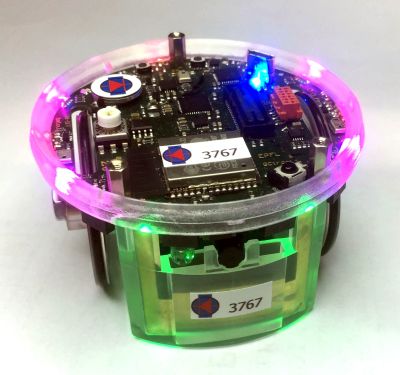
- Connect the robot to the computer with the USB cable and switch it on.
- Use the latest official firmware, or choose your own file (
.elf). - Click Program and select the GDB Server port, the first of the two e-puck2 ports
(lower number, e.g.
ttyACM0/COM3).
How it works
The STM32F413 on the robot runs a Black Magic Probe based GDB server. This page talks the GDB remote protocol directly with it.
- Connect the robot to the computer with the USB cable and switch it on.
- Choose your robot version to use the latest official firmware, or choose your own images.
- Click Program and select the Serial Monitor port, the second of the two e-puck2 ports
(higher number, e.g.
ttyACM1/COM4).
From e-puck 2.2 the ESP32 has 2 MB of additional PSRAM and needs its own firmware. The version is printed on the top board of the robot (e.g. “e-puck 2.2”).
If programming fails
- Now and then a block is corrupted on the way to the ESP32 (“… failed with status 1,5”): the page writes that part again automatically, and the log says so. If programming still stops, increase Pause between blocks (e.g. 20–50 ms) and try again.
- If the connection or the baud rate change fails, select 115200 baud.
- If the ESP32 does not answer (“Failed to connect with the device” or “The ESP32 does
not answer”), which can happen when programming twice in a row, reset the programmer:
- turn the robot off;
- unplug the USB cable;
- turn the robot on;
- plug the USB cable back in, then click Program ESP32 again.
- Enable Show serial trace to see the bytes exchanged with the ESP32 (programming becomes much slower).
How it works
Based on esptool-js. Only 115200 or 230400 are expected to work. The images are written
in parts of 64 KB, each verified with MD5: a part that arrives corrupted through the programmer's
serial bridge is written again (after reconnecting to the ESP32 if needed), so a single bad block does
not make the whole programming fail. A short pause after each 1 KB block makes errors rarer.
Reference: e-puck2 wiki · radio module firmware update
- Put the programmer in DFU mode following the guide below. It appears as
STM32 BOOTLOADER(USB ID0483:df11). - Use the latest official firmware for your robot, or choose your own file.
- Click Program and select STM32 BOOTLOADER.
The robot ID is the number on the label of the radio module.
Driver setup (first time only)
Windows: WebUSB needs the WinUSB driver for the DFU bootloader. With the
programmer in DFU mode, run Zadig,
choose STM32 BOOTLOADER and install WinUSB. (This replaces the ST DfuSe / libusbK
driver for that device.) Install WinUSB only for STM32 BOOTLOADER, never for the robot's
serial ports (1d50:6018), which must keep the Windows serial driver.
Linux: allow access to the DFU device with a udev rule, e.g.
/etc/udev/rules.d/50-stm32-dfu.rules:
SUBSYSTEMS=="usb", ATTRS{idVendor}=="0483", ATTRS{idProduct}=="df11", MODE="0666"
then run sudo udevadm control --reload-rules and reconnect the device.
Reference: e-puck2 wiki · programmer firmware update
Troubleshooting serial ports (STM32F407 and ESP32 tabs)
The robot exposes two serial ports with USB ID 1d50:6018: the GDB Server
(used for the STM32F407) and the Serial Monitor (used for the ESP32). Close any other
program using them (terminal, IDE, gdb) before programming.
Linux: your user must be in the dialout group
(sudo usermod -aG dialout $USER, then log in again). If ModemManager is installed, keep it away from the
robot with a udev rule:
ATTRS{idVendor}=="1d50", ATTRS{idProduct}=="6018", ENV{ID_MM_DEVICE_IGNORE}="1"
Windows: no driver to install: Windows 10/11 shows the two ports under
Ports (COM & LPT) with its own serial driver (usbser), which Web Serial needs.
Do not use Zadig on these ports (Zadig and WinUSB are only for the programmer in DFU mode,
STM32 BOOTLOADER). If a port was switched to WinUSB, it disappears from the port list and from
Ports (COM & LPT); to restore it, in Device Manager find it under
Universal Serial Bus devices, right-click → Uninstall device, tick
Attempt to remove the driver for this device, then unplug and plug the robot again.